ech
win
  • Pricing
Ask AI

Getting Started

Quick Start Guide
Crafting Instructions
Tool Usage
Language Support
Agent Awareness
Knowledgebase

Guides

Call Routing
Call Screening
Customer Service
Integrations
Migration Guide

Tools

Send SMS
Send Email
Send Text Message To Caller
Send DTMF
Multi-Transfer
Call API (Webhooks)
Zapier
Scheduling

CRM

Introduction to CRM
Contact Management
Custom Fields
Custom Buttons
Kanban Boards
AI Automation
CRM Tools

Workflows

Create Your First Workflow
Managing Workflow Triggers
Understanding Decision Nodes
Working with Tool Nodes

Agency

Getting Started with Agency Subaccounts
Create the Client's Sub-Team
Grant Client Team Members Access
Duplicate and Deploy an AI Agent
Phone Numbers
Manage Client Team's Wallet
Auto Reload System
Toggle Between Accounts

Working with Tool Nodes

Tool nodes perform actions in your workflow like sending emails, SMS messages, or connecting to external services. They execute automatically based on decisions made earlier in your workflow.

Automatic Actions

Execute tasks instantly based on conversation context.

Smart Content

AI generates personalized messages for each situation.

How They Work

When a tool node runs, it takes information from the conversation and performs a specific action. The AI understands the context and creates appropriate content without needing templates.
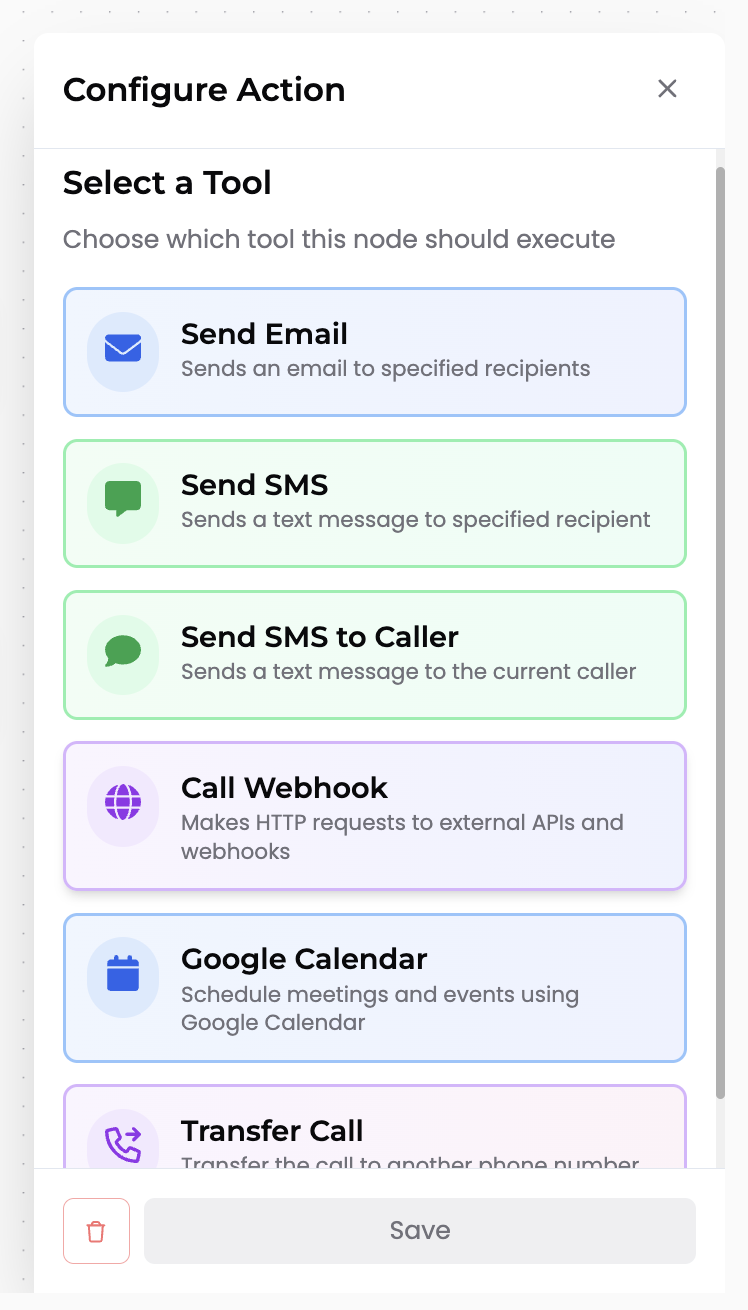
Tool node selector showing available tools

Selecting a tool type for your workflow action

Common Tool Types

Send Email

Automatically compose and send emails with conversation context. Perfect for follow-ups, confirmations, and sharing information.

Send SMS

Send text messages to phone numbers. Great for quick confirmations and time-sensitive notifications.

Webhook

Connect to external services via HTTP. Update CRMs, create tickets, or trigger other workflows.

Google Calendar

Automatically schedule appointments and meetings. Creates calendar events with details from the conversation.

Setting Up Tool Nodes

  1. 1.
    Add a tool node

    Drag an Execute node onto your workflow canvas

  2. 2.
    Select the tool type

    Choose from Email, SMS, Webhook, Google Calendar, or other available tools

  3. 3.
    Configure settings

    Email tool requires recipient's email address. SMS tool needs recipient's phone number. Webhook requires API endpoint URL, HTTP method, etc.

  4. 4.
    Add instructions (optional)

    Write instructions for what to include. For example in Email tool the instructions could be: "The subject of email should be Support Ticket - {customer name}"

  5. 5.
    Connect to workflow

    Link the tool node to other nodes in your workflow

Related Resources

Create Your First Workflow

Get started with workflow basics

Understanding Decision Nodes

Learn how to create intelligent branching

Managing Workflow Triggers

Configure when workflows execute

ech
win

Advanced AI voice agents for modern businesses. Build, deploy, and scale intelligent phone and chat agents.

(888) 881-1066support@echo.win

Products

  • Build Your AI Employee
  • AI Phone Agent
  • AI Chat Agent
  • AI Receptionist
  • Business Phone Number
  • Free AI CRM
  • Book a Demo

Solutions

  • Receptionist
  • Customer Support
  • Collections
  • Appointment Scheduling
  • Lead Qualification
  • Call Routing
  • Multilingual Support
  • After Hours

Industries

  • Energy & Power
  • Roofing
  • Auto Repair
  • Medical
  • Security
  • Call Center
  • E-commerce
  • Agencies

Resources

  • Blog
  • Documentation
  • API Documentation
  • Reviews & Mentions
  • FAQ
  • News
  • Changelog
  • About Us
  • Contact Us
  • Career

Compare

  • echowin vs Vapi
  • echowin vs Bland AI
  • echowin vs Retell AI
  • echowin vs Synthflow
  • echowin vs Voiceflow

© 2026 echowin Inc. All rights reserved.

Terms of ServicePrivacy PolicyLimited Use DisclosureUser Data Deletion